
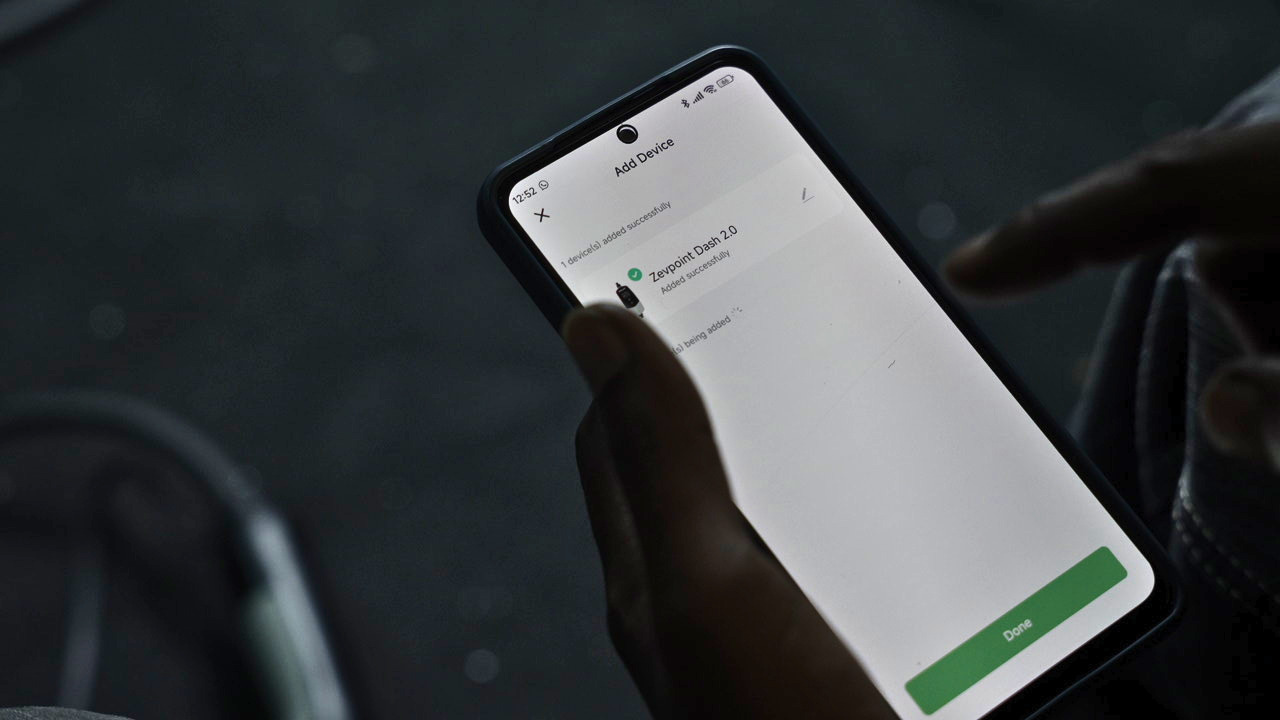

You just got home after a long day, plugged in your EV, and opened the Zevpoint app to schedule an overnight charge. But wait – the app isn't connecting to your charger. You try to reset it, but nothing happens. It's a frustrating situation, especially when you rely on smart features for managing your charging, tracking consumption, or even just making sure the charge starts at the right time. This guide will help you understand why your charger might be acting up and what steps you can take to fix it, even if a simple reset isn't working.
Understanding Why Your App Isn't Connecting
When your Zevpoint EV charger app fails to connect, it's usually a communication problem, not necessarily a fault with the charger itself. Think of it like your phone struggling to connect to Wi-Fi. The issue could be with your internet, the charger's Wi-Fi module, or even your phone's settings.
Common Reasons for Connectivity Issues:
- Weak Wi-Fi Signal: This is perhaps the most common culprit in Indian homes and societies. If your charger is installed in basement parking or far from your Wi-Fi router, the signal might be too weak or inconsistent for a stable connection.
- Router or Internet Issues: Sometimes, the problem isn't with the charger but with your home internet connection. A power cut, a router restart, or even a service provider issue can disrupt connectivity.
- Charger Firmware Issues: Less common, but sometimes the charger's internal software (firmware) might need an update or could have encountered a temporary glitch.
- Incorrect Network Settings: During setup, if the charger wasn't connected to the correct Wi-Fi network or if the password changed, it won't connect.
Initial Troubleshooting Steps (Before You Panic)
Before attempting a hard reset, let's go through some basic checks that often resolve the issue without needing drastic measures.
1. Check Your Home Wi-Fi
- Router Restart: Unplug your Wi-Fi router for 30 seconds, then plug it back in. Wait a few minutes for it to fully boot up and for your internet connection to stabilise.
- Signal Strength: Stand near your charger with your phone. Can your phone connect to your home Wi-Fi with a strong signal? If not, consider a Wi-Fi extender or moving your router closer if feasible.
- Network Name/Password: Double-check that your Wi-Fi network name (SSID) and password haven't changed since the charger was initially set up.
2. Check Your Phone and App
- Restart Your Phone: A simple phone restart can clear temporary glitches.
- Update the App: Go to your phone's app store (Google Play Store or Apple App Store) and ensure your Zevpoint app is updated to the latest version.
- Clear App Cache: For Android users, go to Settings > Apps > Zevpoint App > Storage > Clear Cache. For iOS, you might need to uninstall and reinstall the app (make sure you remember your login details!).
- Disable VPN: If you're using a VPN on your phone, try disabling it temporarily to see if it interferes with the app's connection.
3. Check the Charger Itself
- Power Cycle: The simplest form of a soft reset for the charger is a power cycle. Locate the MCB (Miniature Circuit Breaker) or switch dedicated to your EV charger in your meter box or distribution board. Turn it OFF, wait for about 60 seconds, and then turn it back ON. This is like restarting a computer and often resolves minor internal software hang-ups.
- Indicator Lights: Observe the indicator lights on your Zevpoint charger. Most chargers have lights that indicate power, Wi-Fi status, and charging status. Refer to your charger's manual to understand what each light signifies.
When the App Still Won't Connect & You Can't Reset It
If the soft reset (power cycling the MCB) didn't work and the app remains unresponsive, you might be facing a deeper issue or a true inability to perform a factory reset through the app. This is where things get a bit more involved.
What if There's No Physical Reset Button?
Many modern EV chargers, especially smart ones, don't have a visible 'reset' button like a router. The primary way to reset them is often through the app or by power cycling. If the app isn't connecting, and you can't find a physical button, the power cycle via the MCB is your main tool.
Understanding a 'Factory Reset'
A factory reset wipes all user settings and returns the charger to its original, out-of-the-box state. This means it will forget your Wi-Fi network and any scheduled charging preferences. You'll need to set it up again as if it were a new device. This is a last resort, as it requires re-pairing with the app.
Steps for a 'Manual' Factory Reset (If Applicable and Supported)
Warning: Only attempt this if specifically instructed by Zevpoint support or if your charger's manual details a physical button sequence. Incorrect procedures can sometimes cause issues.
Some chargers might have a hidden reset button (often a small pinhole button) that requires a paperclip to press for 5-10 seconds. However, Zevpoint chargers are designed for ease of use, and a power cycle from the MCB usually serves as the primary reset mechanism for connectivity issues.
If your Zevpoint charger model does have a specific physical reset procedure (check your user manual), it will typically involve:
- Ensuring the charger is powered ON.
- Pressing and holding a specific button (or combination of buttons) for a set duration (e.g., 10 seconds).
- Observing the indicator lights for a change, which confirms the reset.
After a factory reset, the charger will enter 'setup mode' again, usually indicated by a specific blinking light pattern. You would then open the Zevpoint app and go through the initial setup process to connect it to your Wi-Fi network again.
When to Call for Professional Help
If you've gone through all the troubleshooting steps, power-cycled your charger multiple times, checked your Wi-Fi, and the app still refuses to connect, it's time to reach out to Zevpoint customer support. Here's what to do:
- Gather Information: Note down your charger model, serial number, and a detailed description of the problem. Mention all the troubleshooting steps you've already taken.
- Observe Lights: Be ready to describe the exact pattern of indicator lights on your charger. This helps technicians diagnose the issue remotely.
- Internet Speed Test: Run a speed test on your phone while standing next to the charger to confirm your internet connection is stable.
A professional technician can remotely diagnose the charger's status, push firmware updates if needed, or schedule a site visit if a hardware fault is suspected. Sometimes, the internal Wi-Fi module might need replacement, or there could be an issue with the charger's main circuit board, which only a qualified technician should handle.
Preventive Measures for Stable Connectivity
To avoid future app connectivity issues, consider these points:
- Optimal Wi-Fi Placement: Ensure your Wi-Fi router is placed optimally, or consider a mesh Wi-Fi system or a good quality Wi-Fi extender if your charger is far from the router.
- Regular App Updates: Keep your Zevpoint app updated to benefit from bug fixes and performance improvements.
- Stable Power Supply: Ensure your charger has a stable power supply. Fluctuations can sometimes cause smart modules to misbehave.
- Charger Location: If possible, install your charger in a location with good Wi-Fi coverage. Avoid metallic obstructions between the charger and your router.
While frustrating, app connectivity and reset issues are usually resolvable. By systematically troubleshooting and understanding the common causes, you can often get your Zevpoint charger back online and charging smartly in no time. If all else fails, remember that Zevpoint's customer support is there to assist you.
My charger works but cannot sync data without Wi-Fi
Your charger will still charge your car without Wi-Fi. What stops is the data. The charger needs Wi-Fi to send your energy use in kWh, session times and charging history to the cloud and on to your phone. It keeps a few sessions in a small internal memory, but that memory is limited, so older sessions can be overwritten or not recorded at all if the charger cannot offload them regularly.
Without Wi-Fi you lose:
- Live charging status and current power draw on your phone.
- Past sessions in the app, so you cannot track consumption over time.
- Remote start and stop, scheduling and charge limits.
- Over-the-air firmware updates with bug fixes and security patches.
Two checks the steps above do not cover. Most chargers work best on the 2.4 GHz Wi-Fi band, so make sure that band is switched on in your router and the charger is connected to it. If thick concrete walls block the signal, a powerline adapter carries the network over your home's electrical wiring to a socket near the charger, and some models create a new Wi-Fi hotspot there. A very old router may also lack the range for modern smart devices, and upgrading it can help.


